Access 2000
- Start Access and create a blank database.
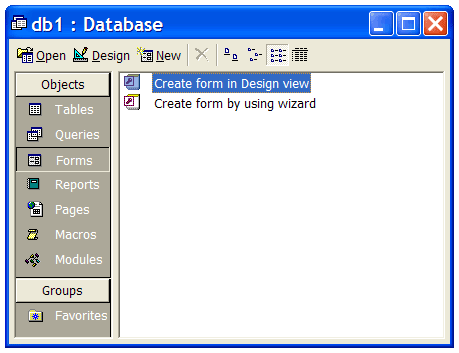
- Select "Forms" from the "Objects" list and double click on "Create form in Design view" as show in the screenshot below. This will create a new form.
- From the menu bar, select Insert > ActiveX Control... which will bring up a list of ActiveX components registered on your computer as shown in the screenshot below.
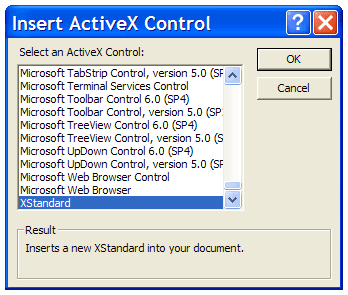
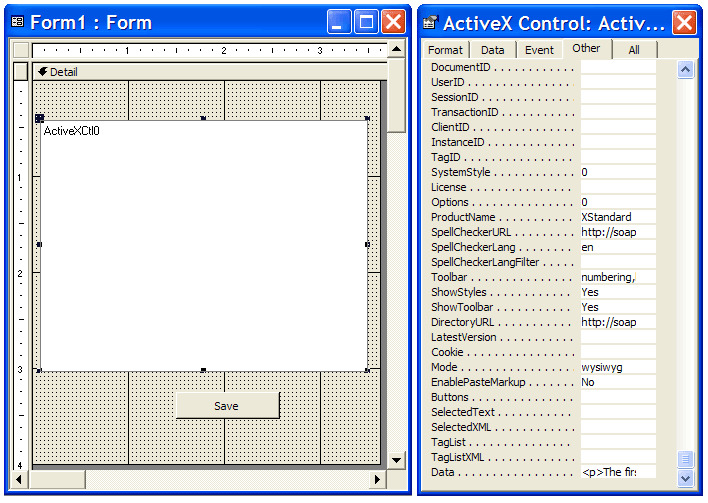
Scroll to the bottom of the list, select "XStandard" and press the OK button. The XStandard control will be added to the form. - Stretch the editor to desired size. To configure the editor, select it by clicking on it and a list of available properties will be displayed in the "Properties" window as shown in the screenshot below.
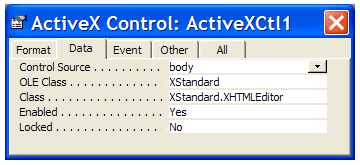
- To bind a database field to the editor, click on the "Data" tab in the "Properties" window and specify the database field in the "Control Source" property as shown in the screenshot below.
Tips
When you need to programmatically get or set the value (XHTML) in the editor, use the Data property instead of the Value property.
Access does not pass the BACKSPACE key to the editor. Use the following workaround:
1. Set the form's "Key Preview" property to "Yes".
2. Include the following KeyDown event subroutine in the form's code module:
- Private Sub Form_KeyDown(KeyCode As Integer, Shift As Integer)
- If KeyCode = vbKeyBack And Shift = 0 Then
- KeyCode = 0
- SendKeys "+{BS}"
- End If
- End Sub
Pressing Undo button in Access may clear the contents of the editor. Use the following code to let users control the undo opperation:
- Private Sub Form_Undo(Cancel As Integer)
- If MsgBox("This operation my clear contents in the editor. Do you want to cancel the Undo?",vbYesNo) = vbYes Then
- Cancel = True
- Else
- Cancel = False
- End If
- End Sub