ScriptQ Monitor
Launching ScriptQ Monitor
ScriptQ Monitor application is used to administer ScriptQ. The application can be found here from the Start menu:
Start > All Programs > ScriptQ > ScriptQ Monitor
Run ScriptQ Monitor as Administrator. To do this, right click over the shortcut to ScriptQ Monitor to bring up the context menu. Then select "Run as administrator".
ScriptQ Monitor minimizes to the Taskbar as shown in the screenshot below.

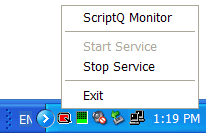
Double-click on the ScriptQ Monitor icon in the Taskbar to restore the window. Right-click over the icon to get a pop-up as shown in the screenshot below.
ScriptQ Monitor Interface
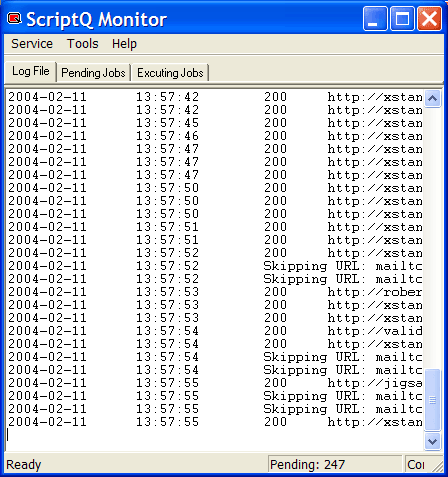
ScriptQ Monitor has a series of tabs. The "Log File" tab displays the log file (see screenshot below). Changes to the log file are displayed under this tab in real-time.
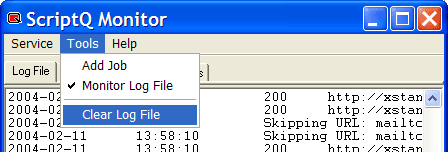
Updating of the log file can be turned on and off by selecting Tools > Monitor Log File from the menu bar. The log file can also be deleted by selecting Tools > Clear Log File from the menu bar as illustrated in the screenshot below.
The "Pending" tab shows jobs that are pending execution (see below). Double-click on a job to see job details.
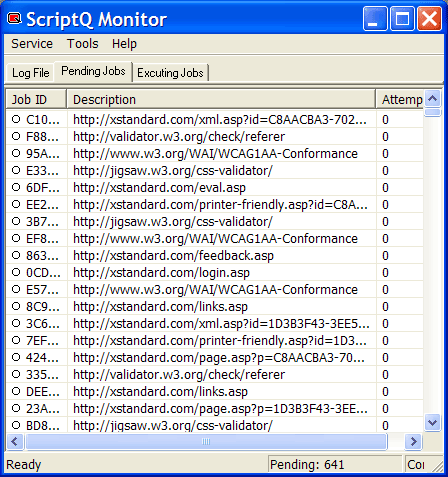
The "Executing" tab shows jobs that are currently being executed (see below).
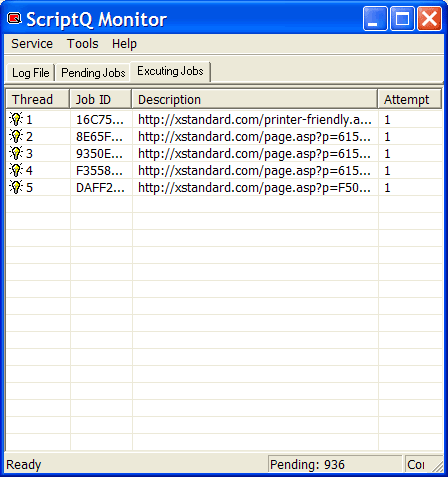
The status bar shows the number of pending jobs, connection to ScriptQ status, and the date in ISO8601 format (see below).

Adding Jobs To ScriptQ
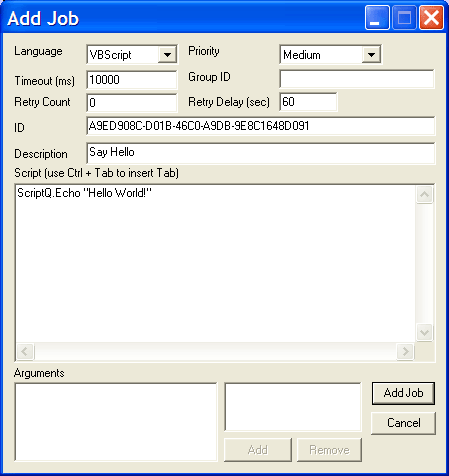
There are two ways to submit jobs to ScriptQ. The first method is to programmatically add a job through a COM API. The second method is to put a job definition in an XML document into the Pickup folder. ScriptQ Monitor provides a graphical interface for the latter method. Select Tools > Add Job to bring up the data-entry screen shown in the screenshot below.